Good Image Preparation for Websites (and what software to use)
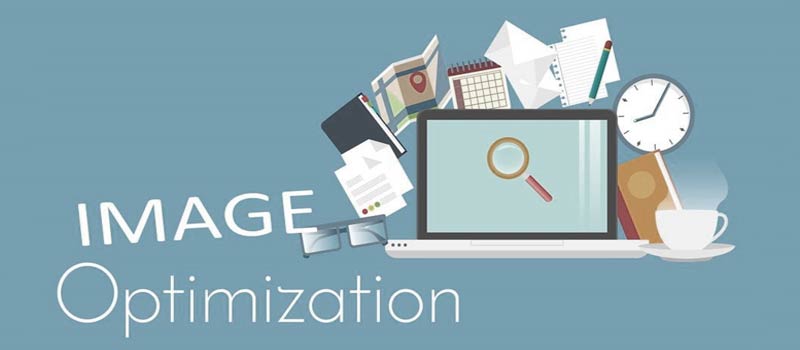
Images can make a website look amazing… or painfully slow.
If your pages take forever to load, oversized or badly prepared images are often the reason. The good news? Fixing this is simple once you know what to do.
Let’s break it down.
Why Image Preparation Matters
Big, unoptimized images slow your website down. And slow websites:
- Lose visitors
- Rank worse on Google
- Convert fewer customers
- Speed matters. A lot.
- Good image preparation helps your site load faster, look sharper, and perform better overall.
Resize Before You Upload
One of the biggest mistakes people make is uploading massive images straight from a camera or phone.
If your website displays an image at 1200px wide, there’s no reason to upload a 6000px image!
Before uploading:
- Resize images to the maximum size they’ll actually display.
- For full-width website images, 1200–2000px wide is usually enough.
- For smaller images, scale them appropriately.
- Smaller dimensions = smaller file size = faster website.
Use the Right File Format
Choosing the right format makes a big difference.
- JPEG – Best for photographs and detailed images.
- PNG – Good for logos or images that need transparency.
- WebP – Modern format, smaller file sizes, great for web performance.
- SVG – Perfect for logos and simple graphics (scalable and lightweight).
If your website supports WebP, use it. It’s often the best balance of quality and file size.
Compress Your Images
Even after resizing, you should compress images.
Compression reduces file size without noticeably affecting quality.
There are two types:
- Lossy compression – Smaller files, slight quality reduction.
- Lossless compression – Keeps full quality but reduces size less aggressively.
Name Images Properly
Instead of calling it: IMG_4587.jpg
Name it something like: modern-kitchen-design.jpg
Search engines read file names. Clear names help with SEO.
What Software Should You Use?
You don’t need expensive tools — but good software helps.
- Adobe Photoshop
Industry standard. Great control over resizing, exporting, and compression. - Affinity Photo
More affordable alternative to Photoshop. Powerful and easy to use. - Canva
Good for basic resizing and simple graphics. Easy for beginners. - GIMP
Free and open-source image editor. Solid option if you don’t want to pay.
Online Tools
For quick compression:
- TinyPNG
- Squoosh
- ImageOptim
- These are great for fast optimization without installing software.
Bonus: Use an Image Optimization Plugin
If you’re using WordPress, plugins like:
- ShortPixel
- Smush
- Imagify
Automatically compress images when you upload them. This saves time and keeps your site optimized.
Final Thoughts
Good image preparation isn’t complicated — but it makes a huge difference.
Resize. Compress. Use the right format.
Your website will load faster, rank better, and create a smoother experience for visitors. And in today’s online world, speed and quality really matter.
If you are unable to do the optimization yourself, let your website designer /developer do it for you. They will have the software, time and expertise.